
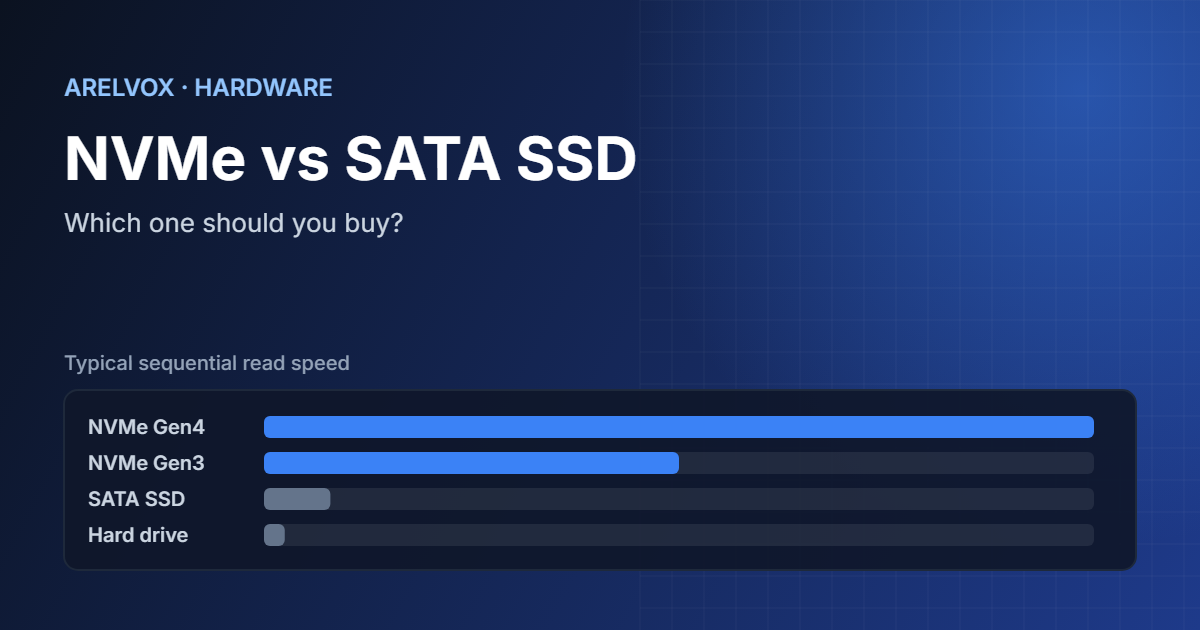
If you’re upgrading a computer or building a new one, you’ll quickly run into the NVMe vs SATA SSD question. Both are solid-state drives, both are much faster than an old hard drive, and both can look almost identical in a store listing. But they work in very different ways, and choosing the wrong one can mean paying for speed you’ll never use, or buying a drive that doesn’t even fit your machine.
In this guide
- What Is an SSD?
- What Is a SATA SSD?
- What Is an NVMe SSD?
- NVMe vs SATA SSD: Side-by-Side Comparison
- NVMe vs SATA SSD: Does the Speed Difference Actually Matter?
- How to Check Which SSD Your Computer Supports
- NVMe vs SATA SSD: Which One Should You Buy?
- A Few Buying Tips
- Final Thoughts on NVMe vs SATA SSD
In this guide, we’ll break down what each type is, how they compare in real life, and which one makes sense for you.
What Is an SSD?
An SSD (solid-state drive) stores data on flash memory chips instead of spinning disks. Because there are no moving parts, SSDs are faster, quieter, and more resistant to bumps than traditional hard disk drives (HDDs).
The difference between NVMe and SATA SSDs isn’t the memory itself. It’s how the drive talks to the rest of your computer.
What Is a SATA SSD?
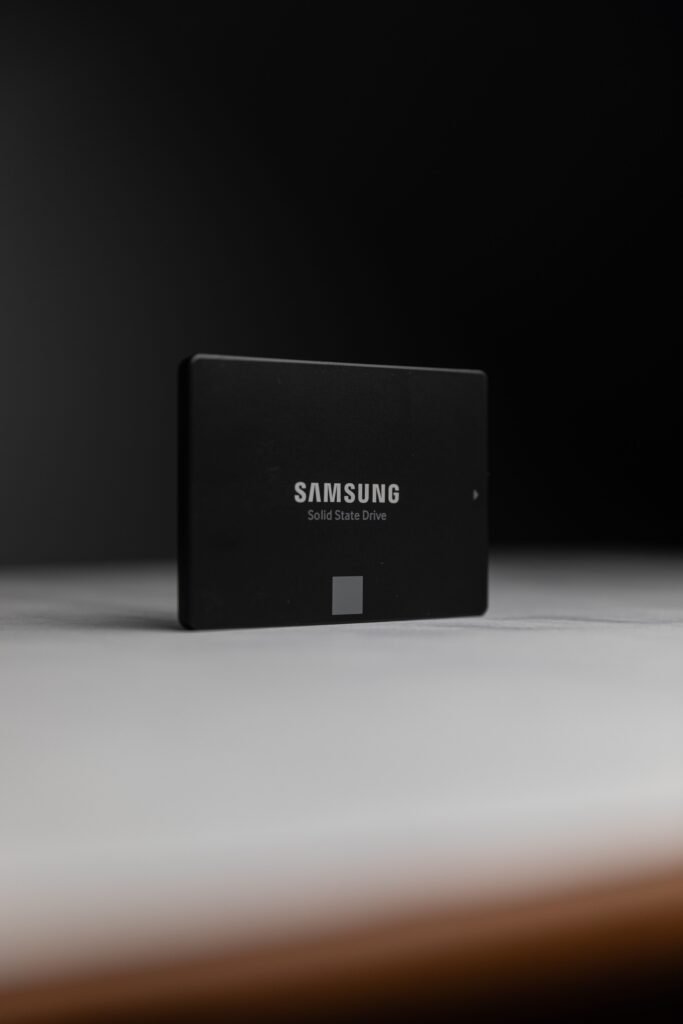
SATA (Serial ATA) is an interface that was originally designed for hard drives. SATA SSDs use that same connection, which made them easy to adopt when SSDs first became popular.
SATA SSDs usually come in two shapes:
- 2.5-inch drives: the same size as a laptop hard drive, connected with a SATA data cable and a power cable.
- M.2 SATA drives: small sticks that plug directly into the motherboard, but still use the SATA protocol.
The main limitation is the SATA III interface itself, which tops out at around 600 MB/s. In practice, most SATA SSDs reach roughly 500–560 MB/s. That’s about five times faster than a typical hard drive, but it’s a ceiling that no SATA SSD can break.
What Is an NVMe SSD?
NVMe (Non-Volatile Memory Express) is a protocol built specifically for flash storage, developed and maintained by the NVM Express consortium. Instead of going through the SATA controller, NVMe drives connect over PCIe lanes, the same high-speed connection used by graphics cards. The PCIe standard itself is defined by PCI-SIG, the group behind every PCIe generation.
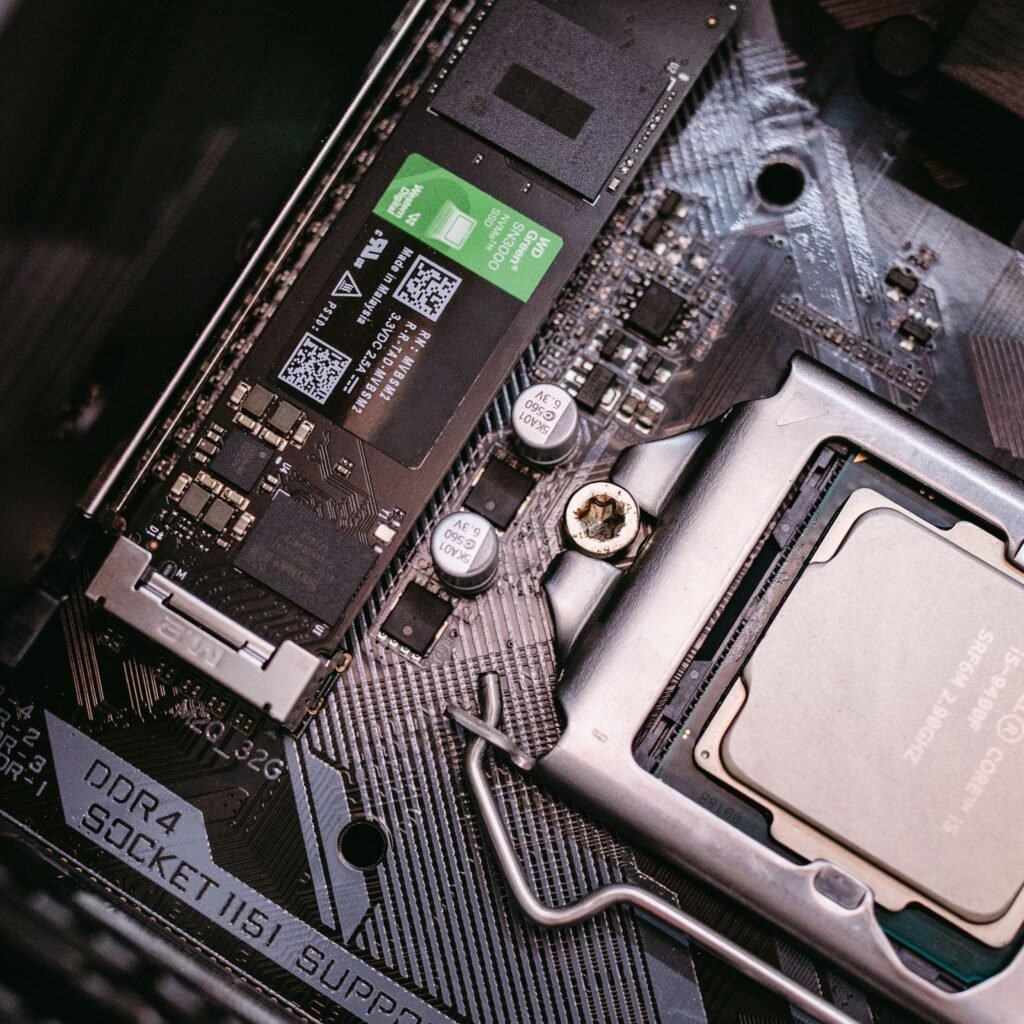
Almost all NVMe SSDs for home use come in the M.2 form factor. Their speed depends on the PCIe generation:
| PCIe generation | Typical max sequential read |
|---|---|
| PCIe 3.0 x4 | ~3,500 MB/s |
| PCIe 4.0 x4 | ~7,000 MB/s |
| PCIe 5.0 x4 | 10,000+ MB/s |
Even an older PCIe 3.0 NVMe drive is around six times faster than the best SATA SSD on paper.
NVMe vs SATA SSD: Side-by-Side Comparison
| Feature | SATA SSD | NVMe SSD |
|---|---|---|
| Interface | SATA III | PCIe |
| Max speed | ~550 MB/s | 3,500 to 10,000+ MB/s |
| Form factor | 2.5-inch or M.2 | Almost always M.2 |
| Compatibility | Very wide, including older PCs | Needs an M.2 slot with NVMe support |
| Price | Low | Similar or slightly higher |
| Heat | Low | Higher on fast PCIe 4.0/5.0 drives |
| Best for | Upgrading older computers | New builds, gaming, heavy workloads |
NVMe vs SATA SSD: Does the Speed Difference Actually Matter?
This is where many buyers get surprised. The numbers on the box are sequential speeds, which measure how fast the drive moves large files in one go. Everyday tasks like booting the system, opening apps, or browsing are mostly small, random reads, and in those cases the gap between NVMe and SATA is much smaller than the specs suggest.
Here’s a realistic picture:
- Booting and opening apps: NVMe is a bit faster, but most people won’t feel a huge difference coming from a SATA SSD.
- Gaming: load times improve slightly. Games are starting to take advantage of fast storage, so NVMe is the better long-term choice.
- Copying large files: this is where NVMe shines. Moving a 50 GB folder can take a fraction of the time.
- Video editing, virtual machines, large datasets: NVMe makes a clear, noticeable difference.
The biggest jump you’ll ever feel is going from a hard drive to any SSD. Going from SATA to NVMe is a nice improvement, not a transformation.
How to Check Which SSD Your Computer Supports
Before buying, make sure the drive will work in your machine:
- Look up your motherboard or laptop model. The manual or the manufacturer’s website lists the storage slots.
- Check for an M.2 slot. If there’s no M.2 slot, a 2.5-inch SATA SSD is your option.
- Confirm the M.2 slot supports NVMe. Some older M.2 slots only accept SATA M.2 drives. Look for “PCIe” or “NVMe” in the specs.
- Check the PCIe generation. A PCIe 4.0 drive will work in a PCIe 3.0 slot, but it will run at PCIe 3.0 speeds.
- Check the length. Most drives are 2280 (22 mm wide, 80 mm long), but some laptops need shorter sizes like 2230 or 2242.
On Linux, you can see your current drives with:
lsblk -d -o NAME,MODEL,TRAN,SIZEThe TRAN column shows sata or nvme, so you’ll know exactly what’s already installed.
NVMe vs SATA SSD: Which One Should You Buy?
Choose a SATA SSD if:
- You’re upgrading an older laptop or desktop with no M.2 NVMe slot.
- You want to replace a hard drive and give an old machine a second life.
- You need cheap extra storage for files, backups, or a home server.
Choose an NVMe SSD if:
- Your computer has an M.2 slot with NVMe support.
- You’re building a new PC. Price differences are now small, so there’s little reason to go SATA.
- You work with large files, play modern games, or run virtual machines.
Is PCIe 5.0 worth it? For most people, not yet. A good PCIe 4.0 drive offers excellent performance, runs cooler, and costs less. PCIe 5.0 makes sense mainly for professional workloads that move huge amounts of data.
A Few Buying Tips
- Don’t judge by speed alone. Look at endurance (TBW, or terabytes written) and warranty length.
- Prefer drives with DRAM cache for your main system disk. They stay fast under heavier use.
- Leave some free space. SSDs slow down when they’re almost full. Keeping 10–20% free helps.
- Use a heatsink for fast NVMe drives if your motherboard includes one, especially with PCIe 4.0 and 5.0.
Final Thoughts on NVMe vs SATA SSD
In the NVMe vs SATA SSD debate, there’s no single winner for everyone. NVMe is faster and the obvious choice for new computers, while SATA is still a great, affordable way to breathe new life into older hardware. Check what your machine supports, think about how you actually use it, and pick the drive that fits.
If you’re planning to repurpose an old computer or a Raspberry Pi, take a look at our guide on turning a Raspberry Pi into a home server, where reliable storage makes a big difference.
Keep reading: setting up a new drive on Linux? Our essential Linux commands guide covers the basics, and the free chmod calculator helps you set the right permissions on new folders.