
If you have a Raspberry Pi collecting dust in a drawer, it’s time to put it to work. In fact, with a few free tools and an afternoon of your time, you can turn that tiny board into a home server capable of storing files, hosting a personal cloud, and running small automation scripts around the clock — all while sipping just a few watts of power.
In this guide
- Why Use a Raspberry Pi as a Home Server?
- What You’ll Need
- Step 1: Install the Operating System
- Step 2: Connect via SSH
- Step 3: Update the System
- Step 4: Give Your Pi a Static IP (Optional but Recommended)
- Step 5: Choose What Kind of Server You Want to Build
- Step 6: A Quick Example — Installing Pi-hole
- Step 7: Keep It Running Reliably
- Final Thoughts
This guide walks you through the entire process, from picking the right hardware to getting your first service up and running.
Why Use a Raspberry Pi as a Home Server?
Before diving in, it’s worth understanding why so many hobbyists choose the Raspberry Pi for this job:
- Low power consumption: a Raspberry Pi draws a fraction of the electricity a full desktop PC does, so you can leave it running 24/7 without worrying about your bill.
- Silent operation: no fans, no spinning drives (if you use an SSD or a good SD card), no noise.
- Compact size: it fits behind a router, on a shelf, or inside a small enclosure.
- Huge community support: whatever you want to build, chances are someone has already documented it.
However, it won’t replace a powerful NAS or a rack server, but for personal file storage, a media server, or small automation tasks, it’s more than capable.
What You’ll Need
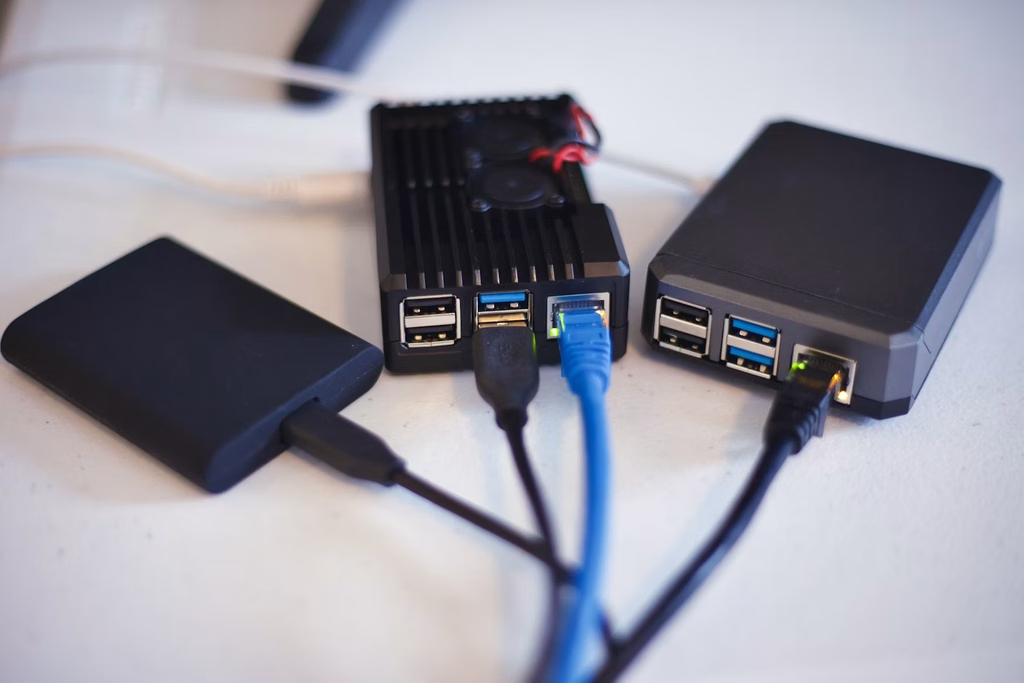
- A Raspberry Pi (4B or 5 recommended for better performance, though a 3B+ will also work for lighter tasks)
- A microSD card (32GB or larger) or, ideally, a USB SSD for better speed and reliability
- A reliable power supply
- An Ethernet cable (a wired connection is strongly recommended over Wi-Fi for a server)
- A computer to prepare the installation
Step 1: Install the Operating System
- Download the Raspberry Pi Imager from the official Raspberry Pi website and install it on your computer.
- Insert your microSD card or SSD into your computer.
- Open Raspberry Pi Imager, choose Raspberry Pi OS Lite (the version without a desktop environment — you don’t need a graphical interface for a server, and it saves resources).
- Before writing the image, click the gear icon (or press Ctrl+Shift+X) to access advanced options: set a hostname, enable SSH, and configure your Wi-Fi credentials if you’re not using Ethernet.
- Write the image and, once finished, insert the card into your Raspberry Pi and power it on.
Step 2: Connect via SSH
Instead of plugging in a monitor and keyboard, you’ll manage your Raspberry Pi remotely from your main computer:
- Find your Raspberry Pi’s IP address (check your router’s connected devices list, or use a tool like
arp -aon your computer). - Open a terminal and connect with:
ssh pi@<your-raspberry-pi-ip>- Enter the password you set during the imaging process.
From here on, every command you run happens through this SSH session.
Step 3: Update the System
Before installing anything, make sure your system is up to date:
sudo apt update && sudo apt full-upgrade -yThis ensures you’re working with the latest security patches and software versions.
Step 4: Give Your Pi a Static IP (Optional but Recommended)
If your Raspberry Pi’s IP address changes every time it reboots, you’ll have a hard time reaching it consistently. Setting a static IP through your router’s DHCP reservation settings (recommended), for example, or directly on the Pi avoids this headache entirely.
Step 5: Choose What Kind of Server You Want to Build
This is where things get interesting. A few beginner-friendly options:
- File server / personal cloud: install Samba to share folders across your local network, or Nextcloud for a full personal Dropbox-style experience.
- Media server: install Jellyfin or Plex to stream your movies and music to any device on your network.
- Ad blocker for your whole network: install Pi-hole, a lightweight DNS-based ad blocker that protects every device connected to your router.
- Home automation hub: install Home Assistant to control smart home devices from a single dashboard.
You don’t have to choose just one — many people run several of these services on a single Raspberry Pi 4 or 5 without issues, as most of these tools are lightweight.
Step 6: A Quick Example — Installing Pi-hole
As a simple first project, here’s how to get Pi-hole running in minutes:
curl -sSL https://install.pi-hole.net | bashFollow the on-screen installer, choose your network interface, and once it’s done, point your router’s DNS settings to your Raspberry Pi’s IP address. Within minutes, ads will start disappearing across every device on your network.
Step 7: Keep It Running Reliably
A few habits will save you headaches down the line:
- Set up automatic reboots or a watchdog if you plan to run critical services.
- Schedule regular backups of your SD card or SSD image.
- Keep the system updated periodically with
sudo apt update && sudo apt full-upgrade -y. - Consider a small UPS (uninterruptible power supply) if your area has frequent power outages, to protect against SD card corruption from sudden shutdowns.
Tip: our free Linux command generator can build the rsync, chown and disk-space commands you will use to manage your Raspberry Pi server.
Final Thoughts
Turning a Raspberry Pi into a home server is one of the most rewarding beginner projects in the maker world — it’s cheap, it’s practical, and it teaches you real-world Linux and networking skills along the way. Therefore, Start small with one service, get comfortable with the basics, and expand from there.
Keep reading: next, block ads with Pi-hole, automate backups with cron and, if you add storage, compare NVMe vs SATA SSDs.