
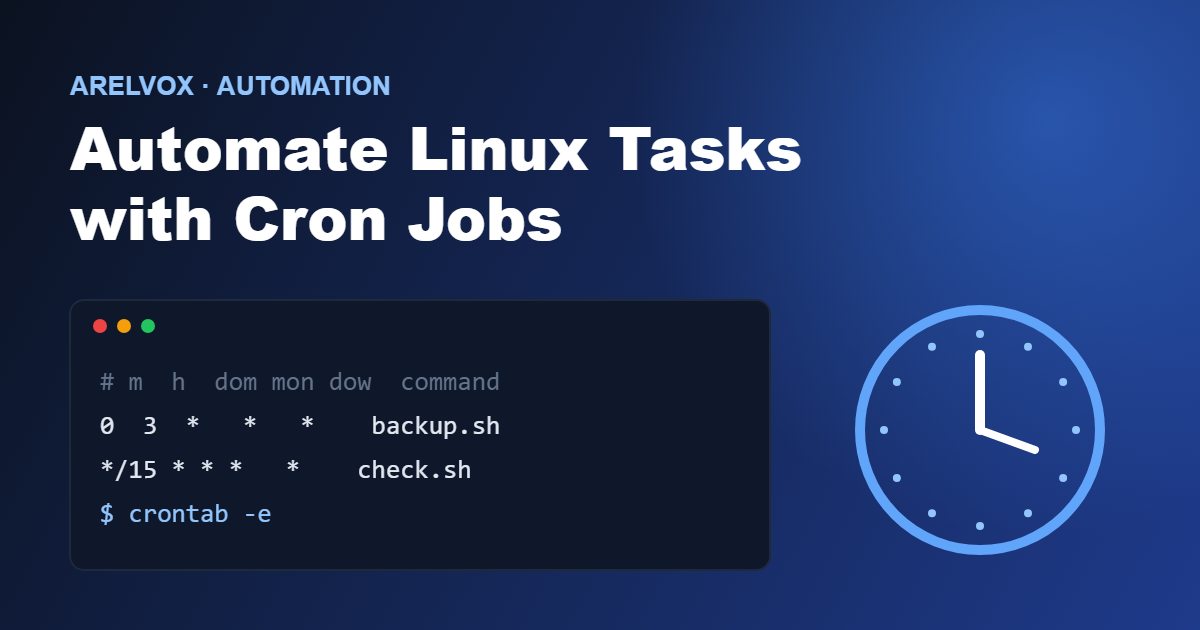
Do you find yourself running the same commands every day? Backing up files, cleaning temporary folders, or restarting a service? With cron jobs on Linux, you can schedule all of that to run automatically, without lifting a finger. In this guide, you’ll learn what cron is, how to read its syntax, and how to create your first scheduled tasks.
In this guide
- What Are Cron Jobs?
- Example 1: Run Nightly Backups with Cron Jobs
- Cron Jobs Syntax Explained
- Example 1: Run Nightly Backups with Cron Jobs
- Example 2: Save the Output to a Log File
- Example 3: Run a Command at Startup
- Example 4: Clean Temporary Files Weekly
- Common Cron Jobs Mistakes to Avoid
- A Helpful Tool: Crontab Guru
- Cron vs. Systemd Timers
- Conclusion
What Are Cron Jobs?
Cron is a background service (a daemon) that runs commands at times you define. Each user has a file called a crontab (cron table) that lists the tasks to run and when. Once a task is in your crontab, Linux takes care of the rest, even if you’re not logged in.
Cron is available on practically every Linux distribution, including Raspberry Pi OS, Ubuntu, and Debian, which makes it perfect for home servers and small projects.
Each scheduled task in your crontab is called a cron job, and you can create as many cron jobs as you need.
Example 1: Run Nightly Backups with Cron Jobs
To edit your personal crontab, open a terminal and run:
crontab -eThe first time, you may be asked to choose a text editor. If you’re a beginner, nano is the easiest option.
To see the tasks you already have scheduled:
crontab -lThis is where all your cron jobs live, so you’ll come back to this command often.
Cron Jobs Syntax Explained
Every line in a crontab has five time fields followed by the command:
* * * * * command_to_run
│ │ │ │ │
│ │ │ │ └── Day of the week (0-7, Sunday is 0 or 7)
│ │ │ └──── Month (1-12)
│ │ └────── Day of the month (1-31)
│ └──────── Hour (0-23)
└────────── Minute (0-59)
An asterisk (*) means “every”. Here are some examples:
| Schedule | Meaning |
|---|---|
* * * * * | Every minute |
0 * * * * | Every hour, on the hour |
30 2 * * * | Every day at 2:30 AM |
0 9 * * 1 | Every Monday at 9:00 AM |
0 0 1 * * | The first day of every month at midnight |
*/10 * * * * | Every 10 minutes |
Cron also supports handy shortcuts such as @reboot (run once at startup), @daily, @weekly, and @monthly.
Once you understand these five fields, you can schedule any of your cron jobs in seconds.
For the full technical reference, see the official crontab manual page.
Example 1: Run Nightly Backups with Cron Jobs
Backups are one of the most popular cron jobs, and also one of the easiest to set up. Imagine you have a script called backup.sh in your home folder. To run it every day at 3:00 AM, add this line to your crontab:
0 3 * * * /home/user/backup.shDon’t forget to make the script executable first:
chmod +x /home/user/backup.shExample 2: Save the Output to a Log File
By default, cron doesn’t show you what a command printed. To keep a record of the results (and any errors), redirect the output to a file:
0 3 * * * /home/user/backup.sh >> /home/user/backup.log 2>&1Here, >> appends the output to the log, and 2>&1 sends error messages to the same place. This is the single most useful habit when debugging cron jobs.
Example 3: Run a Command at Startup
Want something to start every time your Raspberry Pi boots? Use @reboot:
@reboot /home/user/start_server.shStartup tasks like this are some of the most useful cron jobs for a home server.
Example 4: Clean Temporary Files Weekly
This job deletes files older than 7 days from a temporary folder every Sunday at 4:00 AM:
0 4 * * 0 find /home/user/tmp -type f -mtime +7 -deleteAlways test a find ... -delete command without -delete first, so you can check which files it would remove.
Maintenance tasks like this are ideal cron jobs, since you set them once and forget about them.
Common Cron Jobs Mistakes to Avoid
1. Using relative paths. Cron runs with a minimal environment, so always use full paths (/home/user/script.sh, not ./script.sh). You can find the full path of a program with which python3, for example.
2. Forgetting to make the script executable. If the script lacks permissions, cron will silently fail. Use chmod +x.
3. Wrong time zone. Cron uses the system’s time zone. Check it with the date command if tasks run at unexpected hours.
4. Not checking the logs. If a job doesn’t work, look at the system log:
grep CRON /var/log/syslogOn some systems you can use journalctl -u cron instead.
5. Editing the wrong crontab. crontab -e edits your user’s crontab. System-wide tasks that need root privileges belong in sudo crontab -e.
A Helpful Tool: Crontab Guru
If the syntax feels confusing, the website crontab.guru translates any cron expression into plain English. Paste in */15 9-17 * * 1-5 and it will tell you: “Every 15 minutes, between 9:00 and 17:59, Monday through Friday.”
Cron vs. Systemd Timers
Modern Linux systems also offer systemd timers, which are more flexible and integrate with system logs. However, cron is simpler, works everywhere, and cron jobs are more than enough for most personal projects. Start with cron, and explore timers later if you need more control.

Tip: a script must be executable before cron can run it. Use our free chmod calculator to pick the right permissions, such as 755 for most scripts.
Conclusion
Cron jobs are one of the simplest ways to save time on Linux. With a basic understanding of the five time fields, full paths, and log redirection, you can automate backups, maintenance, and monitoring in just a few minutes.
Try creating your first cron job today: schedule a script that writes the date to a file every minute, check that it works, and then build from there.
Have a question or a cron job you’d like us to cover? Let us know through the Contact page.
Keep reading: build the commands your jobs run with our free Linux command generator, and if you run scheduled tasks on a Pi, see how to block ads on your whole network with Pi-hole.