
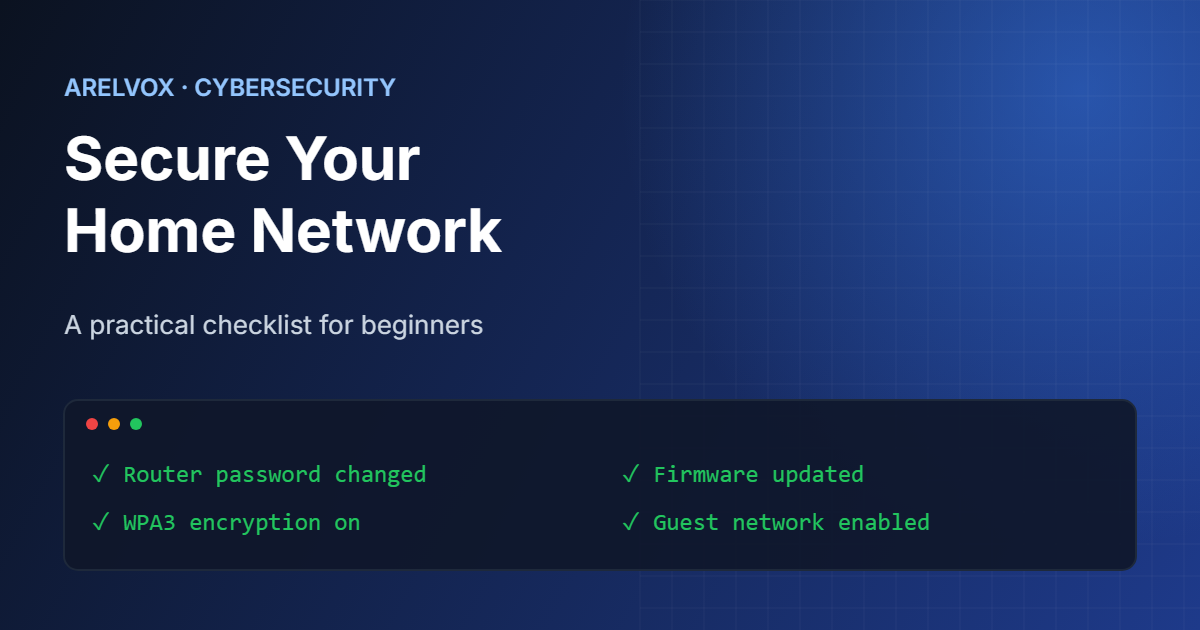
Most people think of cybersecurity as something that only matters for big companies. In reality, your home network is just as much of a target — attackers hijack routers to build botnets, hack smart devices to spy on their owners, and exploit weak Wi-Fi passwords to piggyback on your connection. The good news is that securing your home network doesn’t require expensive tools or deep technical knowledge. A handful of good habits will cover the vast majority of real-world threats.
In this guide
- Why Home Network Security Matters
- Step 1: Change Your Router’s Default Login
- Step 2: Use a Strong Wi-Fi Password and WPA3
- Step 3: Keep Your Router’s Firmware Updated
- Step 4: Set Up a Guest Network
- Step 5: Disable Unnecessary Remote Access Features
- Step 6: Use a Firewall
- Step 7: Keep All Connected Devices Updated
- Step 8: Monitor Connected Devices
- Final Thoughts
This guide walks through the practical steps you can take today, in order of priority.
Why Home Network Security Matters
Every device connected to your network — your laptop, phone, smart TV, thermostat, security camera — is a potential entry point. Once an attacker gets access to one weak device, they can often move laterally to everything else on the same network. This is why network-level security matters just as much as securing individual devices.
Consequently, a single weak link — like a router still using its factory-default password — can undermine every other precaution you’ve taken.
Step 1: Change Your Router’s Default Login
Most routers ship with a default username and password (often something like admin / admin), and anyone can find these credentials with a quick online search.
- Log into your router’s admin panel (usually by typing
192.168.1.1or192.168.0.1into your browser). - Find the administration or system settings.
- Change the default username and password to something unique and strong.
If you’ve never done this, do it first — it’s the single most important step on this list.
Step 2: Use a Strong Wi-Fi Password and WPA3
Your Wi-Fi password should be long, unique, and never reused from another account. Aim for at least 16 characters combining words, numbers, and symbols.
Additionally, check your router’s wireless security settings and make sure it’s using WPA3 (or WPA2 at minimum) — security researchers consider older protocols like WEP and WPA broken, since attackers can crack them in minutes.
Step 3: Keep Your Router’s Firmware Updated
Router manufacturers regularly release firmware updates that patch security vulnerabilities. However, most routers don’t update automatically by default.
- Log into your router’s admin panel.
- Look for a “Firmware Update” or “System Update” section.
- Check for updates and install them if available.
- Repeat this every few months, or enable automatic updates if your router supports it.
Step 4: Set Up a Guest Network
If your router supports it (most modern ones do), create a separate guest network for visitors and for less-trusted devices like smart plugs, cameras, or IoT gadgets. This way, even if one of those devices gets compromised, the attacker can’t reach your main computers and phones.
Step 5: Disable Unnecessary Remote Access Features
Many routers turn on features like WPS (Wi-Fi Protected Setup) or remote management by default. WPS, in particular, has known vulnerabilities that make it relatively easy to crack.
- Go into your router settings and disable WPS.
- Disable remote management unless you specifically need to access your router from outside your home network.

Step 6: Use a Firewall
Most routers include a basic firewall that’s enabled by default, but it’s worth confirming. For an extra layer of protection, consider running a self-hosted DNS-based blocker such as Pi-hole (covered in our Raspberry Pi home server guide), which can block malicious domains network-wide before they even load.
Step 7: Keep All Connected Devices Updated
Your router isn’t the only thing that needs updates. Phones, laptops, smart TVs, and IoT devices all receive security patches too. Set aside time monthly to check for and install pending updates across your devices — this alone closes a huge percentage of real-world attack paths.
Step 8: Monitor Connected Devices
Periodically check your router’s list of connected devices. If you see something you don’t recognize, that’s a strong signal to investigate — it could be an unfamiliar guest, or it could be an unauthorized device that’s found its way onto your network.
Planning a separate network for guests or smart devices? Use our free subnet calculator to work out the address ranges before you change your router settings.
Final Thoughts
None of these steps require advanced technical skills, and together they cover the overwhelming majority of realistic home network threats. Start with the router login and Wi-Fi password — those two alone eliminate the most common entry points — and then work through the rest of the list at your own pace. For more resources on strengthening your network, the Cybersecurity & Infrastructure Security Agency (CISA) publishes regularly updated guidance for home users.
Keep reading: for an extra layer of protection, run Pi-hole to block ads and trackers, and review the basics in our home network guide.