
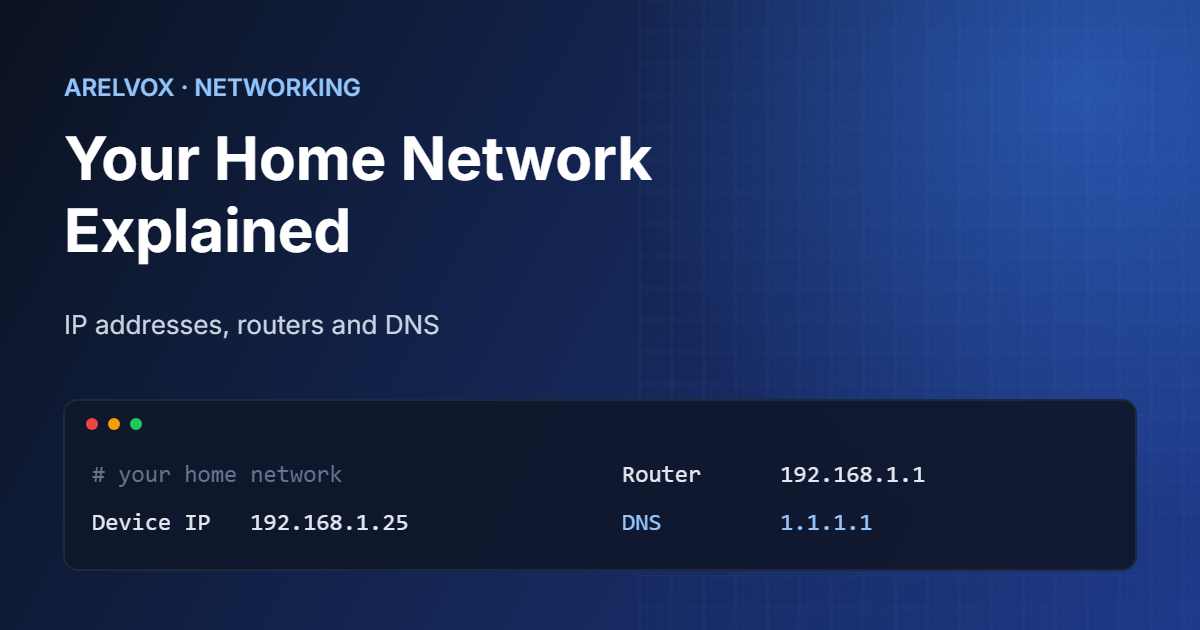
Most people use the internet every day without ever thinking about the home network basics happening between clicking a link and a page loading on screen. Understanding the basics — IP addresses, routers, and DNS — makes troubleshooting far less mysterious, and it’s genuinely useful knowledge whether you’re setting up a home server, securing your network, or just curious about how it all fits together.
This knowledge is useful whether you’re setting up a home server, securing your network, or simply curious about how everything fits together. For example, the phrase home network basics can guide you through choosing devices, configuring WiFi, and diagnosing connection problems.
This guide breaks down the core concepts in plain language, building on the practical steps covered in our home network security guide.
IP Addresses: The First Home Network Basics to Understand
Understanding home network basics starts with IP addresses — a unique number assigned to every device on a network, similar to how a street address identifies a specific house.
There are two types worth knowing:
- Private IP addresses: used inside your home network. Every device connected to your router — your laptop, phone, smart TV — gets one, usually starting with
192.168.x.xor10.x.x.x. These addresses aren’t visible to the outside internet. - Public IP address: the single address your internet provider assigns to your router, which represents your entire home network to the outside world. Every device inside your home shares this one public address when communicating externally.
This system, called Network Address Translation (NAT), is why you can have dozens of devices at home browsing the internet simultaneously while only using one public IP address.
What Does a Router Actually Do?
A router sits between your home network and the internet, and it does two main jobs:
- Routing traffic: it directs data between your devices and the internet, making sure a response to your laptop’s request doesn’t accidentally end up on your phone.
- Acting as a firewall: by default, most routers block unsolicited incoming connections from the internet, which is a big part of why your home network isn’t directly exposed to attackers scanning for open devices.
In many setups, a router includes a built-in switch for Ethernet connections.
It also includes a wireless access point to provide Wi-Fi.
A single router often functions as three devices in one box. This is a core part of home network basics.
What Is DNS?
DNS (Domain Name System) is essentially the internet’s phone book. Computers communicate using IP addresses, but humans remember names much more easily than strings of numbers — nobody wants to type 142.250.190.14 to visit a search engine.
When you type a website’s name into your browser:
- Your device asks a DNS server, “What’s the IP address for this domain name?”
- The DNS server responds with the correct IP address.
- Your browser connects directly to that IP address to load the page.
This whole exchange typically takes a fraction of a second, and by default, your device uses whatever DNS server your internet provider assigns. However, you can change this — many people switch to public DNS services (like 1.1.1.1 or 8.8.8.8) for improved speed or privacy, or run a self-hosted option like Pi-hole, covered in our Raspberry Pi home server guide, which also blocks ads and trackers network-wide at the DNS level.
Home Network Basics in Action: What Happens When You Visit a Website
- You type a website address into your browser.
- Your device queries DNS to translate that name into an IP address.
- Your router forwards the request out to the internet, using NAT to track which device on your network made it.
- The website’s server receives the request and sends back data.
- Your router routes that data back to the correct device on your network.
- Your browser renders the page.
All of this typically happens in under a second, even though it involves multiple systems working together across potentially thousands of miles.
Common Terms You’ll Run Into
- DHCP: the system that automatically assigns private IP addresses to devices as they join your network, so you don’t have to configure each one manually.
- Port: a number that identifies a specific type of traffic on a device — for example, web traffic typically uses port 80 or 443, while SSH uses port 22.
- Port forwarding: a router setting that allows specific incoming internet traffic to reach a particular device on your home network — useful for hosting a server, but worth understanding the security implications before enabling it.
- Subnet: a logical division of a network, often represented as an address range like
192.168.1.0/24, defining which devices can communicate directly with each other.
Why These Home Network Basics Matter for Troubleshooting
Understanding these home network basics turns vague frustration (“the internet is broken”) into actionable diagnosis:
- If a specific website won’t load but others do, the issue is often DNS-related.
- If no devices can connect at all, the problem is more likely with the router or your internet provider.
- If one specific device can’t connect while others work fine, that device’s IP configuration is the likely culprit.
Try it yourself: our free subnet calculator shows the network address, broadcast address and usable host range of any IP address in seconds.
Final Thoughts
None of this requires memorizing technical specifications — mastering these home network basics is really about building a mental model of how data actually travels from your device to the wider internet and back. Once IP addresses, routers, and DNS click into place conceptually, troubleshooting network issues (and understanding guides like our home network security checklist) becomes far more intuitive.
Keep reading: now that you know how your network works, block ads for every device with Pi-hole and learn how to secure your home network.