
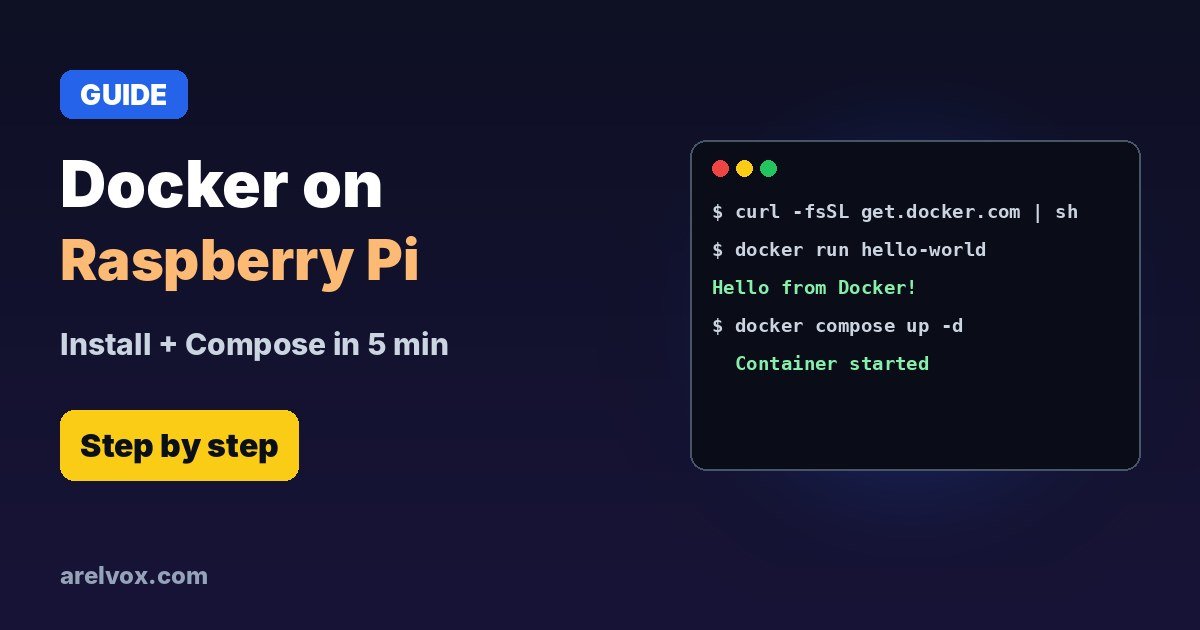
curl -fsSL https://get.docker.com | sudo sh, add yourself to the docker group with sudo usermod -aG docker $USER, log out and in, and test with docker run hello-world. Docker Compose is included: use docker compose up -d.Docker is the easiest way to run self-hosted apps on a Raspberry Pi: Pi-hole, Home Assistant, Node-RED, Uptime Kuma, Jellyfin and many more, each in its own container, easy to update and easy to remove. This guide installs Docker and Compose the official way and runs your first stack.
🛒 What you need
As an Amazon Associate, Arelvox earns from qualifying purchases. This does not change the price you pay.
1. Check You Have a 64-bit OS
uname -m
# aarch64  = 64-bit, good
# armv7l   = 32-bit, reinstall with the 64-bit image
Then update the system:
sudo apt update
sudo apt full-upgrade -y
2. Install Docker With the Official Script
curl -fsSL https://get.docker.com -o get-docker.sh
sudo sh get-docker.sh
The script adds Docker’s repository and installs Docker Engine, the CLI, containerd and the Compose plugin. Future updates come through apt upgrade like any other package.
3. Run Docker Without sudo
sudo usermod -aG docker $USER
# log out and back in (or reboot), then:
docker run hello-world
If you see “Hello from Docker!”, everything works. Note: being in the docker group is effectively root access, so only add users you trust.
4. Your First Docker Compose Stack
Create a folder and a compose.yaml file. This example runs Uptime Kuma, a nice dashboard to monitor your websites and devices:
mkdir -p ~/stacks/uptime
cd ~/stacks/uptime
nano compose.yaml
services:
uptime-kuma:
image: louislam/uptime-kuma:1
container_name: uptime-kuma
ports:
- "3001:3001"
volumes:
- ./data:/app/data
restart: unless-stoppeddocker compose up -d
docker compose ps
docker compose logs -fOpen http://<your-pi-ip>:3001 in a browser. A static IP makes that address permanent.
5. Everyday Commands
| Command | What it does |
|---|---|
| docker compose pull | Download newer images |
| docker compose up -d | Create or update and start the stack |
| docker compose down | Stop and remove the containers (data in volumes stays) |
| docker ps | List running containers |
| docker system prune | Delete stopped containers and unused images |
Tips
- Use an SSD: databases on an SD card wear it out and are slow.
- Keep each app in its own folder with its compose.yaml and data.
- Watch the temperature with several containers running: check it and avoid throttling.
- Don’t expose container ports to the internet directly. Use a VPN or a reverse proxy, and check which ports are open.
Frequently Asked Questions
Which Raspberry Pi do I need for Docker?
Any Raspberry Pi with a 64-bit OS works: Pi 3, 4, 5 or Zero 2 W. For several containers, a Pi 4 or 5 with at least 4GB of RAM and an SSD is much more comfortable than an SD card.
Should I use the 32-bit or 64-bit Raspberry Pi OS?
64-bit. Most images on Docker Hub are built for arm64, and 32-bit support keeps shrinking.
Is it docker-compose or docker compose?
Use docker compose (with a space). It is the Compose plugin that installs with Docker. The old docker-compose Python tool is deprecated.
Why do I get permission denied on /var/run/docker.sock?
Your user is not in the docker group yet. Run sudo usermod -aG docker $USER, then log out and back in.
How do I start containers automatically on boot?
Docker starts on boot by default. Add restart: unless-stopped to each service in your compose file and the containers come back after a reboot.