
Arduino for beginners is often the first real step from “using technology” to “building technology.” It’s a small, affordable microcontroller board that lets you control lights, motors, sensors, and countless other components with simple code — no electrical engineering degree required. This guide walks through everything you need to blink your first LED and understand what’s actually happening when you do.
In this guide
- Arduino for Beginners: What Is Arduino, Exactly?
- What You’ll Need
- Setting Up the Arduino IDE
- Understanding the Code Structure
- Arduino for Beginners: Your First Project — Blinking an LED
- Understanding What Just Happened
- Where to Go From Here
- Common Arduino for Beginners Mistakes to Avoid
- Final Thoughts
Arduino for Beginners: What Is Arduino, Exactly?
Understanding arduino for beginners starts with knowing what Arduino actually refers to: both a family of microcontroller boards and the software used to program them. Unlike a computer, a microcontroller doesn’t run an operating system — it runs one small program at a time, in an endless loop, directly controlling the electronic components connected to it.
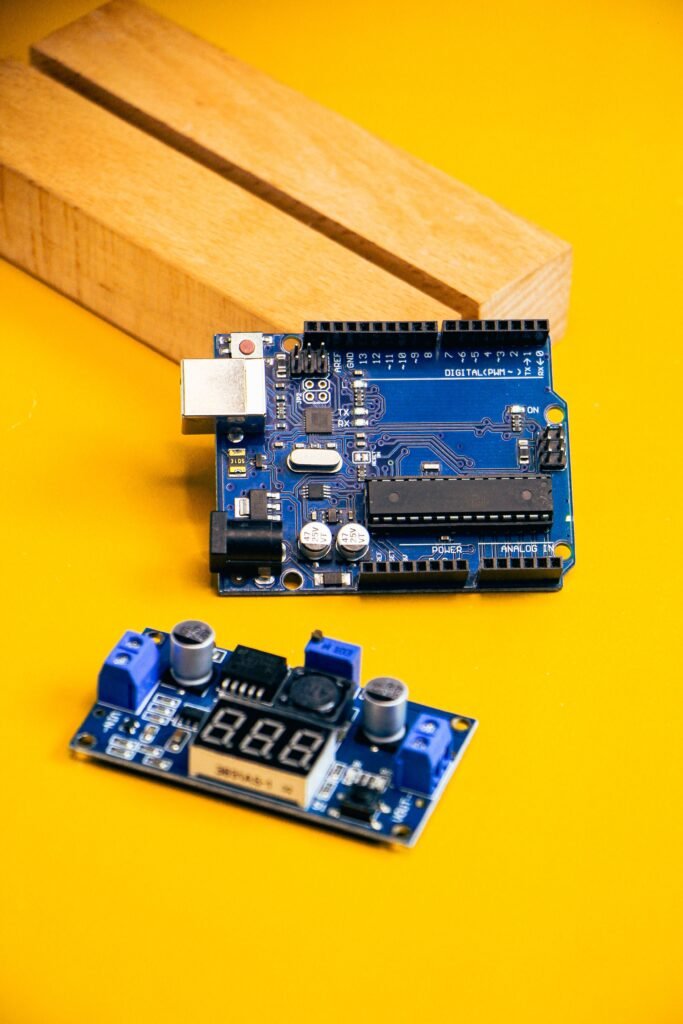
The most common starting board is the Arduino Uno, which is well-documented, inexpensive, and compatible with the vast majority of beginner tutorials and components you’ll find online.
What You’ll Need
- An Arduino Uno (or compatible clone board)
- A USB cable to connect it to your computer
- A breadboard (a reusable board for building circuits without soldering)
- A handful of jumper wires
- An LED and a resistor (220-330 ohms works well) for your first project
- A computer with the free Arduino IDE installed
Setting Up the Arduino IDE
- Setting up your workspace is the first practical step in arduino for beginners projects. Download the Arduino IDE from the official site at arduino.cc.
- Install it and open the application.
- Connect your Arduino board to your computer via USB.
- In the IDE, go to Tools > Board and select “Arduino Uno” (or your specific board model).
- Go to Tools > Port and select the port your board is connected to — on Windows this usually looks like “COM3”, and on Mac or Linux it looks like “/dev/tty.usbmodem…”
Understanding the Code Structure
Every Arduino program (called a “sketch”) follows the same basic structure:
void setup() {
  // Runs once when the board powers on or resets
}

void loop() {
  // Runs continuously, over and over, after setup() finishes
}
The setup() function is where you configure things once — like telling the board which pins will send or receive signals. The loop() function is where the actual behavior happens, repeating endlessly until you disconnect power.
Arduino for Beginners: Your First Project — Blinking an LED
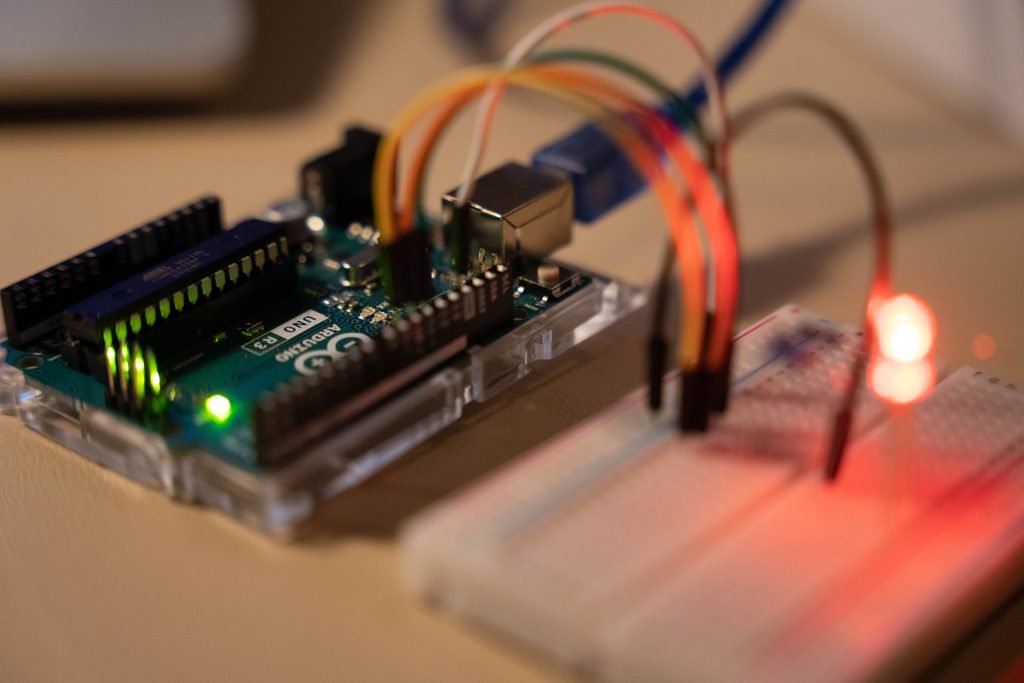
This arduino for beginners project is the “Hello World” of electronics — and once you get it working, you understand the fundamental loop that every Arduino project builds on.
Wiring the circuit:
- Place the LED on the breadboard, with the longer leg (positive) and shorter leg (negative) in separate rows.
- Connect a resistor from the LED’s longer leg to one of the Arduino’s digital pins (pin 13 is a common choice and even has a built-in LED you can test with before wiring anything).
- Connect the LED’s shorter leg to one of the Arduino’s GND (ground) pins.
Writing the code:
void setup() {
  pinMode(13, OUTPUT);
}

void loop() {
  digitalWrite(13, HIGH);
  delay(1000);
  digitalWrite(13, LOW);
  delay(1000);
}
This code sets pin 13 as an output, then repeatedly turns it on, waits one second, turns it off, and waits one second again — creating a steady blink.
Uploading the code:
- Click the Upload button (the right-pointing arrow icon) in the Arduino IDE.
- Wait for the “Done uploading” message.
- Your LED should start blinking immediately.
Understanding What Just Happened
- Breaking down arduino for beginners code line by line helps make the logic click. pinMode(13, OUTPUT) tells the Arduino that pin 13 will send electrical signals out, rather than read them in.
digitalWrite(13, HIGH)sends power to that pin, lighting the LED.delay(1000)pauses the program for 1000 milliseconds (one second) before continuing.digitalWrite(13, LOW)cuts power to the pin, turning the LED off.
Every more advanced Arduino project — robots, sensors, home automation — builds on this same foundation: read an input or set a value, wait or react, repeat.
Where to Go From Here
Once you’ve got the arduino for beginners basics down and blinking an LED feels familiar, a few natural next projects include:
- Reading a button press to turn the LED on and off manually, instead of automatically.
- Adding a temperature sensor and printing the readings to your computer using
Serial.print(). - Controlling a small motor or servo, introducing movement into your projects.
- Combining Arduino with a Raspberry Pi, using the Arduino to handle real-time sensor readings while the Pi handles more complex logic or logging — a common pairing in home automation setups.
Common Arduino for Beginners Mistakes to Avoid
- Forgetting the resistor — connecting an LED directly to a pin without one can burn it out almost instantly.
- Mixing up the LED’s legs — LEDs only work in one direction; if it doesn’t light up, try flipping it around before assuming something else is wrong.
- Selecting the wrong board or port in the IDE — this is the most common reason an upload fails with an error.
- Loose breadboard connections — a wire that looks connected but isn’t fully seated is one of the most common sources of “it should be working” frustration.
Not sure which resistor you have? Use our free resistor color code calculator to read the color bands, or type a value like 220 to see which colors to look for.
Final Thoughts
This arduino for beginners project — blinking an LED — might seem trivial, but it teaches the core mental model behind nearly every electronics project you’ll build afterward: set things up once, then react and repeat. From here, each new sensor or component you add is really just a variation on the same pattern — read something, decide something, do something.
Keep reading: once you outgrow the Arduino, a Raspberry Pi can run a full Linux system. See how to turn a Raspberry Pi into a home server for a first project.