
Ads and trackers slow down your browsing, waste your data, and follow you from site to site. Pi-hole is a free tool that blocks them for every device on your home network at once, including phones, smart TVs, and laptops. In this guide, you’ll learn how to install it on a Raspberry Pi, connect your network, and keep everything working well.
In this guide
- What Is Pi-hole?
- What You Need Before You Start
- Step 1: Prepare Your Raspberry Pi
- Step 2: Install Pi-hole
- Step 3: Set Your Admin Password
- Step 4: Connect Your Network to Pi-hole
- Step 5: Check That Everything Works
- Keeping Pi-hole Up to Date
- What Pi-hole Cannot Do
- Security Tips
- Conclusion: Enjoy a Cleaner Network with Pi-hole
What Is Pi-hole?
Pi-hole is a network-wide ad blocker that works as a DNS sinkhole. Whenever a device asks for a website address, it checks the request against a list of known advertising and tracking domains. If the domain is on the list, the request is refused, so the ad never loads. Otherwise, it passes the request along to a normal DNS server.
If you want a refresher on how DNS works, read our guide to understanding your home network first.
What You Need Before You Start
- A Raspberry Pi. Almost any model works, even a Raspberry Pi Zero 2 W, because the software uses very few resources.
- A microSD card (8 GB or more) and a power supply.
- An Ethernet cable. Wi-Fi works, but a cable is more reliable for a device that your whole network depends on.
- Access to your router’s settings.
Step 1: Prepare Your Raspberry Pi
First, install Raspberry Pi OS Lite with Raspberry Pi Imager. In the advanced settings, enable SSH and set your username and password. Then boot the Pi, connect to it over SSH, and update the system:
sudo apt update && sudo apt full-upgrade -yNext, give the Pi a fixed IP address. Since your devices will send all their DNS requests to this address, it must never change. The easiest way is to create a DHCP reservation in your router, which always assigns the same IP to your Pi’s MAC address.
Step 2: Install Pi-hole
The project provides an official installer. Run it with:
curl -sSL https://install.pi-hole.net | bashThe installer walks you through a few screens. In most cases, you can keep the defaults, but pay attention to these choices:
- Upstream DNS provider: Choose one you trust, such as Cloudflare or Quad9.
- Blocklists: Keep the default list to start with.
- Web admin interface: Leave it enabled, because it makes managing Pi-hole much easier.
If you prefer to read a script before running it, download it first and review it. This is a good habit with any installer.
Step 3: Set Your Admin Password
When the installation finishes, set a password for the web dashboard:
sudo pihole setpasswordOn older versions, the command is pihole -a -p instead. Afterward, open http://pi.hole/admin in your browser, or use the Pi’s IP address followed by /admin, and log in.
Step 4: Connect Your Network to Pi-hole
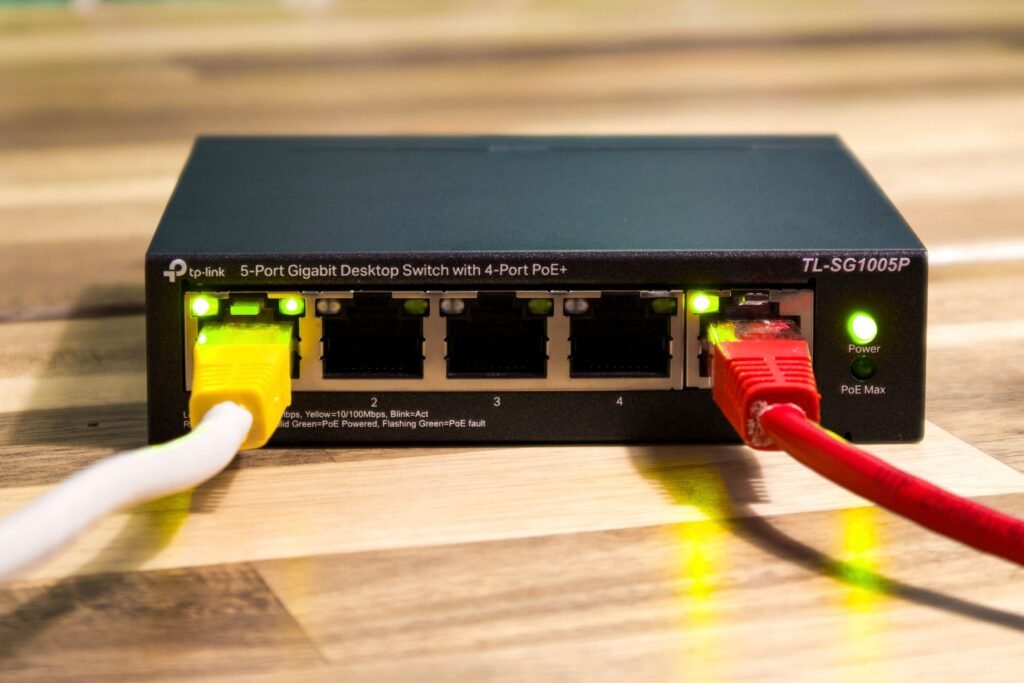
Now it’s running, but your devices don’t use it yet. You have two options:
- Change the DNS server in your router. Set the router’s DNS (or DHCP DNS) to your Pi’s IP address. As a result, every device on the network uses Pi-hole automatically. This is the best option.
- Change the DNS on individual devices. This works if your router doesn’t let you change DNS, but you have to repeat it on every device.
After saving, reconnect a device to the network or restart it, so it picks up the new settings.
Step 5: Check That Everything Works
Open any website and look at the dashboard. You should see queries appear in real time, along with the percentage of blocked requests. For a quick test, visit a page with many ads and compare it with your usual experience.
You can also test from a terminal:
nslookup doubleclick.netIf it’s blocking the domain, the answer comes back as 0.0.0.0 or similar.
Keeping Pi-hole Up to Date
Every so often, update the software and the blocklists:
pihole -up
pihole -g
The first command updates Pi-hole itself, and the second refreshes the blocklists (this process is called gravity). Moreover, you can add more blocklists from the web interface under Adlists if you want stronger blocking.
What Pi-hole Cannot Do
However, Pi-hole is not magic. Keep these limits in mind:
- It cannot block ads that come from the same domain as the content, such as most YouTube ads.
- Some websites break if you block too much, so you may need to allowlist certain domains.
- If your Pi goes offline, devices that depend only on it lose DNS and appear to have no internet. Therefore, many people set a secondary DNS server in the router as a fallback, although this lets some ads through.
Security Tips
- Use a strong password for the dashboard and for the Pi itself.
- Never expose the Pi-hole admin page to the internet.
- Keep Raspberry Pi OS updated. Our guide to securing your home network explains more habits like this.
Conclusion: Enjoy a Cleaner Network with Pi-hole
Pi-hole is one of the best first projects for a Raspberry Pi. It costs almost nothing, takes less than an hour to set up, and makes every device on your network a little faster and more private. Now that you have it running, try adding extra blocklists and watch the dashboard to see how many requests it blocks every day.
For the official documentation, visit the Pi-hole website and its docs.
Do you have a question about Pi-hole? Let us know through the Contact page.
Keep reading: new to the Pi? Start with how to turn a Raspberry Pi into a home server, and use our free subnet calculator to check your network range before you give Pi-hole a fixed address.