
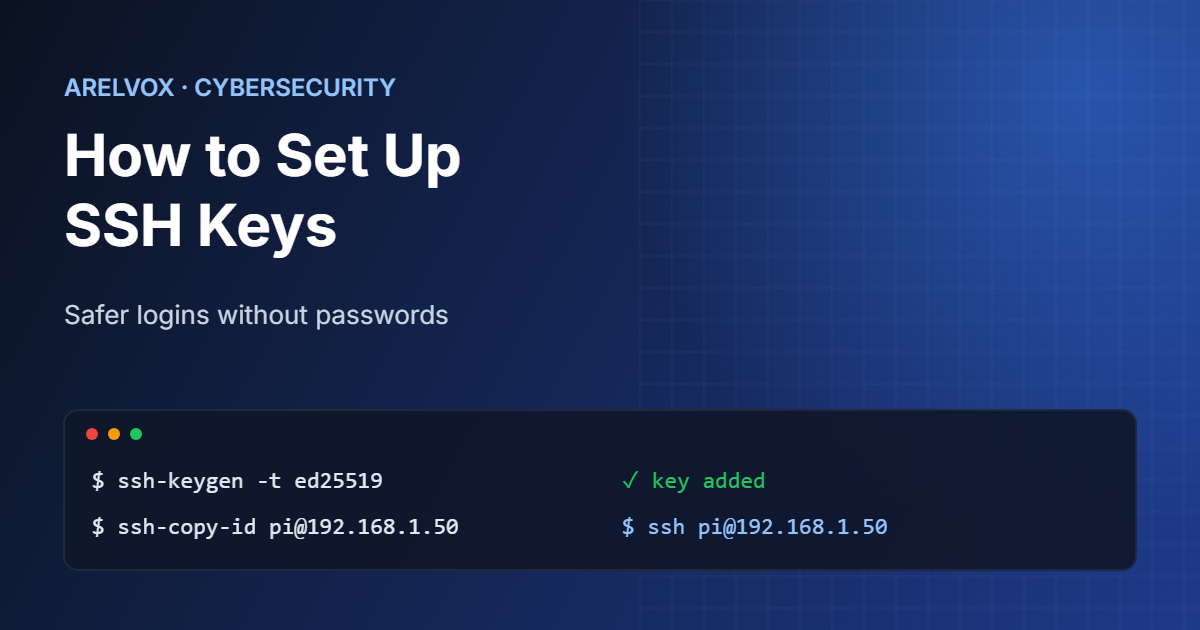
Typing a password every time you connect to a server is slow, and passwords can be guessed or stolen. If you set up SSH keys instead, you solve both problems. They let you log in securely with a single command, and they are much harder to break than any password.
In this guide you will learn how to set up SSH keys step by step, on Linux, macOS and Windows. It works the same for a cloud server, a home lab or a Raspberry Pi.
How SSH Keys Work
An SSH key comes in two parts. The private key stays on your computer and must never be shared. The public key goes on every server you want to access. When you connect, the server checks that you hold the private key that matches, without the key ever being sent over the network.
Therefore, even if someone watches your connection, they cannot copy your login. That is the main reason to set up SSH keys on every server you manage. This is why SSH keys are the standard way to manage servers.
Step 1: Generate Your Key Pair
First, open a terminal on your computer. On Linux and macOS this is the Terminal app, and on Windows 10 and 11 you can use PowerShell, which includes the OpenSSH client. Then run:
ssh-keygen -t ed25519 -C "my-laptop"-t ed25519creates a modern, fast and secure key type.-Cadds a label so you can recognise the key later.- Press Enter to accept the default location,
~/.ssh/id_ed25519. - Choose a passphrase. It protects the key if your laptop is ever stolen.
As a result, you now have two files: id_ed25519 (private) and id_ed25519.pub (public).
Step 2: Copy the Public Key to Your Server
The easiest way to set up SSH keys on a server is ssh-copy-id. It logs in once with your password and installs the public key for you:
ssh-copy-id pi@192.168.1.50On Windows, ssh-copy-id is not available, so you can append the key manually from PowerShell:
type $env:USERPROFILE\.ssh\id_ed25519.pub | ssh pi@192.168.1.50 "mkdir -p ~/.ssh; cat >> ~/.ssh/authorized_keys"Replace pi and the IP address with your own user and server. Not sure which IP your server has? Our guide to home network IP addresses explains how to find it.
Step 3: Test the Login
Now connect again:
ssh pi@192.168.1.50If you managed to set up SSH keys correctly, the server lets you in without asking for its password. If you set a passphrase, your computer asks for that instead, and the SSH agent can remember it for the rest of your session.
Step 4: Fix Permissions if It Does Not Work
In most cases, the reason SSH keys fail is wrong permissions. SSH refuses to use keys or folders that other users can read. On the server, run:
chmod 700 ~/.ssh
chmod 600 ~/.ssh/authorized_keys
Similarly, on your own computer the private key must be readable only by you, so use chmod 600 ~/.ssh/id_ed25519. If numbers like 700 and 600 look confusing, our guide to Linux file permissions and the chmod calculator explain them in seconds.
Step 5: Disable Password Logins
Once your key works, you can finally turn off password logins completely. This blocks the automated attacks that try thousands of passwords against every public server. First, make sure you can log in with your key, and then edit the SSH settings on the server:
sudo nano /etc/ssh/sshd_configFind the line PasswordAuthentication, set it to no, save the file and restart SSH:
sudo systemctl restart sshHowever, on some distributions the service is called sshd instead of ssh. Keep your current session open until you have tested a new login, so you cannot lock yourself out.
Good Habits for SSH Keys
- Use one key per device, so that you can revoke a lost laptop without touching the others.
- Also, always protect keys with a passphrase.
- Remove old keys from
~/.ssh/authorized_keyswhen you stop using a device. - Back up your private key securely, or simply create a new one if you lose it.
- Read more hardening tips in our guide to securing your home network and in the official OpenSSH manual.
For every available option, the official OpenSSH manual is the most reliable reference, and the Arch Wiki guide to SSH keys explains advanced setups such as agent forwarding.
FAQ: How to Set Up SSH Keys
Are SSH keys safer than passwords?
Yes. A modern SSH key is practically impossible to guess, it is never sent over the network, and it lets you disable password logins, which stops brute-force attacks.
Which SSH key type should I use?
Ed25519 is the best default today. It is fast, secure and supported by every recent version of OpenSSH. Use RSA with at least 3072 bits only for very old systems.
Can I use the same SSH key on several servers?
Yes. You can copy the same public key to as many servers as you like. Just keep the private key safe on your own device.